
Print letter-size shipping labels on a 4×6 Zebra from a Mac
The label is on an 8.5×11 page, the printer takes 4×6. Here’s how to get a full-size label without cropping.
Many marketplaces and carrier sites give you shipping labels as a letter-size PDF: the label on one half, instructions or a packing slip on the other, sometimes two labels side by side. Send that page to a 4×6 thermal printer through the built-in macOS driver and the whole sheet gets shrunk onto the label — the barcode ends up too small to scan — or the label is cut off.
The manual workaround is to crop each label in Preview, rotate it, and print at the right size every time. That works, but it’s slow and easy to get wrong when you have a stack of orders.
How CrispDock handles letter sheets
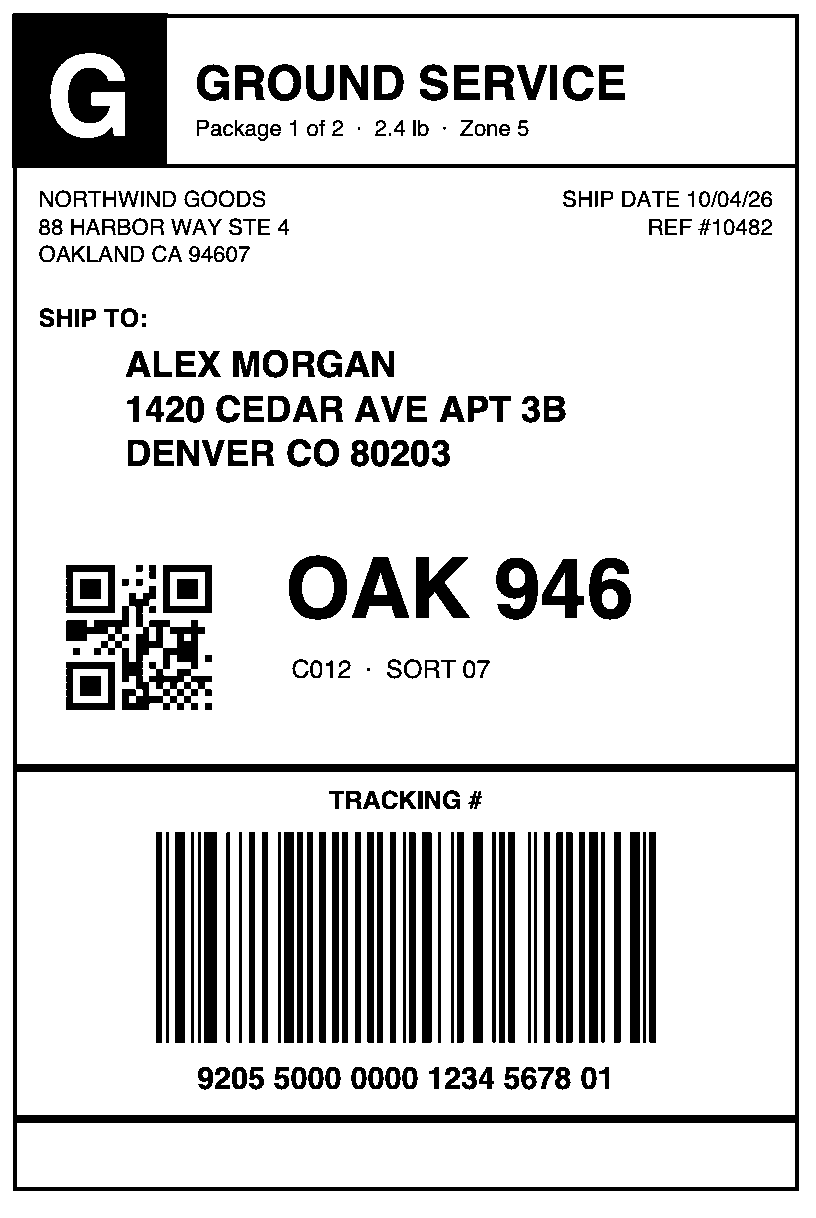
CrispDock is a macOS printer driver for Zebra ZPL printers. When a shipping label arrives on a letter or A4 page, it finds the label, cuts it out and rotates it to fill a 4×6 label automatically — one or two labels per page, framed or not, sideways or upright. You print the PDF as it came; the Zebra gets just the label, sharp enough to scan.

By platform
If your platform lets you choose a 4×6 label format, CrispDock prints that directly too. If you get a letter-size page instead, here’s what to expect.
eBay
Labels you buy on eBay that come as a letter-size PDF are cut out and printed as a 4×6 label. Print straight from the browser’s PDF view.
Etsy
Etsy shipping labels downloaded as a letter page print as a full 4×6 label; you don’t need to crop them first.
Amazon
Amazon return labels come on a page with a “cut here” line. CrispDock finds the label on that page and prints just the label on 4×6.
Shopify
Shopify shipping labels saved as letter-size PDFs are found on the sheet, rotated if needed and printed at full 4×6 size.
Pirate Ship
Pirate Ship labels that come as a letter page are cut out automatically; labels already set up as 4×6 print as they are.
TikTok Shop
TikTok Shop shipping labels on letter sheets are covered too, so you can print them from the browser without editing.
USPS, UPS, FedEx and DHL
Labels printed from carrier sites on letter or A4 paper — USPS, UPS, FedEx (including international) and DHL — are found, cut out and rotated to 4×6.
How to print one
- Install CrispDock and let it set up your Zebra (USB or network).
- Open the label PDF in your browser or in Preview and press ⌘P.
- Choose your Zebra printer and 4×6 paper, then print.
Want to check first? Drop the PDF into the CrispDock app to preview every label exactly as the printer will get it. And as with any label, check important ones before you ship.
Questions
Do I need to crop the PDF first?
No. Print the letter-size page as it is; CrispDock finds the label, cuts it out and rotates it to fill 4×6.
What if there are two labels on one page?
CrispDock finds one or two labels per page, framed or not, sideways or upright.
Can I print 4×6 shipping labels on a 2-inch printer?
No. A 4×6 label needs a 4-inch printer such as the ZD421, GK420d or ZP 500. Two-inch models like the ZD411 are for smaller labels.
Does it work with A4 sheets?
Yes. Labels printed on letter or A4 sheets are both found and cut to 4×6.
Is there a free version?
Yes. Every feature works and it never expires; labels just carry a “CrispDock FREE” watermark until you choose a Pro plan.
Printer guides
Setup steps and specs for the printers people use this with most: